
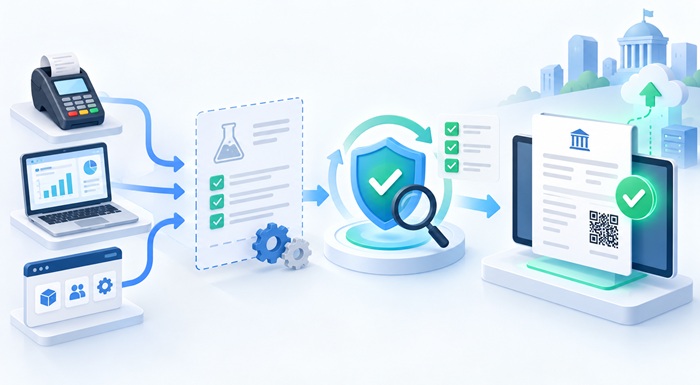
Connecting your POS, accounting software or ERP to Fiji VMS, Samoa TIMS or Vanuatu VSMS should not mean discovering configuration mistakes on a real customer's invoice. Training invoices give your team a way to practise the fiscal invoicing workflow before relying on it for daily sales.
An incorrect tax mapping, missing buyer information or a refund that cannot find its original invoice is much easier to address before customers are waiting at the counter. The aim is not simply to see a successful connection. It is to check that the right information reaches the right document.
A Training invoice is not a Normal Sale. Training Sale and Training Refund transactions do not affect the taxpayer's tax liability. They are for genuine testing and staff training, not a substitute for fiscal invoices covering real business transactions. [1]
TL;DR: What should you test before going live?
- Confirm Training is selected: check the returned document, not only a setting or an invoice description.
- Check the invoice data: tax labels, tax calculations, buyer details and payment methods.
- Test a linked refund: use a Training Refund against the appropriate Training Sale, not a real customer sale.
- Find the result: check the invoice number, receipt, verification information and accounting write-back where supported.
- Control the switch to live invoicing: review test records and turn off Training before processing real customer sales.
No tax-liability effect does not mean no oversight. Samoa's official TIMS guidance warns that Training use is monitored and frequent use can attract an audit. [2]
What is a Training invoice?
Training is a dedicated invoice type for operator training. It can be combined with either Sale or Refund, allowing staff to rehearse both sides of the workflow. [1]
| Transaction | Purpose | Tax-liability effect |
|---|---|---|
| Training Sale | Practise issuing a sale document. | No change. |
| Training Refund | Practise the refund workflow. | No change. |
| Normal Sale | Record an actual sale. | Records the applicable sale tax. |
| Normal Refund | Reduce or reverse an earlier Normal Sale. | Reduces the applicable sale tax. |
The distinction is the invoice type sent for processing, not the name of the test customer or the word “test” typed into a description. Adding “TEST” to an ordinary invoice does not make it a Training invoice.
A Training document can still contain calculated tax amounts. Check those amounts during testing, but do not confuse the displayed calculation with a change to tax liability.
For Fiji VMS, FRCS requires Training documents to carry the warning “THIS IS NOT A FISCAL INVOICE”. Do not provide a Training document as the customer's valid Tax Invoice for an actual sale. [3]
What should you prepare before testing fiscalization?
Before creating your first sample, agree who will run the tests, who will check the results and who can approve the move to live invoicing.
- Correct connection: confirm the country, taxpayer, company file and business location.
- Working credentials: check that the certificate or Secure Element is valid for the selected setup.
- Approved sample data: prepare representative items, tax treatments and buyer details suitable for the test environment.
- Confirmed Training setting: check it before the sample becomes eligible for automatic processing.
- Expected results: write down the totals, payment breakdown and document type you expect to receive.
Protect the source accounting records too
Agree with your accountant how test transactions will be kept out of real customer balances, stock movements and accounting returns. Fiscal Training is not a substitute for controlling what you enter in MYOB, Xero, your POS or your ERP.
Check customer-email settings and any connected payment terminal separately. Do not assume selecting Training for fiscal processing also disables outgoing emails or real card charges.
Training mode is not the same as a separate test environment
A fiscal Training invoice describes the document being processed. A sandbox is a separate testing environment. FRCS distinguishes its accreditation test environment from the production system used by taxpayers. [3]
Ask your provider which environment and credentials your test plan should use. A local practice screen that never sends a document cannot, by itself, prove that the full fiscal connection works.
Seven checks for your POS or accounting integration
Use transactions that resemble your actual business. A wholesaler should include a business customer. A retailer should include its usual tender types. A business accepting deposits needs a separate check of its advance-payment workflow.
1. Check tax labels and tax-code mapping
Start with the taxes your business actually uses, not just the first option in a dropdown.
For example, the FiscoBridge MYOB integration maps the company's MYOB tax codes to the relevant fiscal tax labels. A code named GST does not, by its name alone, identify the correct fiscal category. [4]
MYOB tax code, for example GST
Configured FiscoBridge mapping
Correct fiscal tax label and rate on the Training invoice
- Compare the returned tax label and rate with the intended treatment.
- Check tax-inclusive and tax-exclusive prices, discounts and rounding.
- Test mixed-tax invoices and multiple taxes on a line where your business uses them.
- Compare line totals, tax totals and the invoice total with your expected results.
Use the current tax configuration for the taxpayer's jurisdiction. Do not copy rates from an old screenshot. FiscoBridge's validation guidance also advises checking the available tax labels rather than hard-coding a historical set. [5]
2. Check customer and B2B information
For a business-to-business invoice, check the buyer TIN, customer name and cost centre where used. Verify the relevant information in both the source record and the returned document.
Ask your provider which source fields feed the fiscal buyer information. A name visible in the accounting contact list is not enough evidence that the required buyer identifier has reached the fiscal record.
Include one ordinary retail sample and one business-customer sample where both are relevant. Check the printed or electronic layout your staff will actually provide to customers. The desktop POS guide describes customer selection by name or TIN and displaying those details on the receipt. [6]
3. Check payment methods
Test cash, card, bank transfer, voucher and Mobile Money where applicable. Include mixed or split payments if your software supports them.
For a sample total of 200.00, a simulated split could be 50.00 cash and 150.00 card. Check both the amounts and the labels on the returned document. FiscoBridge Desktop POS records split payment methods separately and requires the allocated amounts to match the invoice total. [7]
A receipt showing 200.00 entirely as cash has not passed this test just because the total is correct. Confirm the mapping for any local payment names used in your accounting or POS software.
4. Run an everyday sale as a Training Sale
Rehearse the transaction your team will perform most often, but keep the fiscal invoice type set to Training, not Normal.
- Create the sample in the POS, accounting software or ERP.
- Perform the action that should trigger processing in your configured workflow.
- Find the resulting document in FiscoBridge or the connected POS.
- Check that it is a Training Sale and compare it with the original sample.
For an integration, test the trigger as well as the connection. Does the sample process at the intended approval, posting or payment stage? Does it remain unprocessed before that stage?
The AccountRight setup guide recommends testing the invoice flow, tax mapping and returned fiscal information before production.
5. Practise a Training Refund
Do not wait until your first real return to discover that staff cannot find the original invoice.
Use the supported refund action for a Training Sale. Before submitting, confirm that the proposed document is a Training Refund and carries the correct original fiscal reference. Do not practise against a real customer's Normal Sale.
Where supported, test both a full reversal and a partial return using separate, suitable samples. Check the item selection, refund amount and reference. Training Sale and Training Refund each have no tax-liability effect; the refund exercise is to test the workflow, not to cancel tax created by the Training Sale. [1]
For cloud integrations, do not assume a negative accounting credit note creates the fiscal refund automatically. FiscoBridge's credit-note guide explains the portal Refund workflow. For a rehearsal, first confirm that your setup supports the corresponding Training Refund operation.
6. Check invoice references and related documents
Keep the SDC Invoice Number returned for your sample. For a linked refund, check that the reference matches that fiscal identifier, not simply the accounting invoice number.
FRCS requires references for Refund and Copy documents. A successful standalone sale therefore does not prove that your reference handling is ready. [3]
Check copies and advance transactions separately. Training, Copy and Advance are different invoice types. A Training Sale cannot prove every rule used by an Advance Sale or the final settlement of a deposit. [8]
Ask your provider to test those document types and their reference chains in the appropriate test environment. Do not issue live Normal or Advance documents merely to practise. The advance-payment guide explains the separate deposit workflow.
7. Check the returned fiscal result and write-back
Finish the test where your staff finish their work, not at a “sent successfully” message.
- Find the returned invoice number and check the document type.
- Open the receipt or fiscal journal and compare the details.
- Check the verification link or QR code where provided.
- Confirm the result is associated with the correct accounting invoice.
- Open the returned PDF or attachment where the integration supports it.
For MYOB, FiscoBridge documents the fiscal number and verification link in the invoice's Comment field, with a receipt link in Journal Memo. Check those fields during your Training run. Do not assume every connector returns an attachment in the same way. [9]
Also agree how staff will recognise a failure and where they should find the reason. Before retrying an uncertain result, check whether a document was already issued. FiscoBridge's custom-integration guidance warns against resending without that check. [5]
Worked example: test a sale and partial refund
A fictional Fiji wholesaler, Island Supplies, is preparing its accounting integration. The team uses a sample invoice with two lines: FJD 120.00 and FJD 80.00, giving a FJD 200.00 total.
These are illustrative tax-inclusive line totals, not a recommendation for any tax rate. The accountant supplies the expected tax breakdown and categories for the selected items before the test begins.
| Test | Expected result |
|---|---|
| Create the sample | A Training Sale for FJD 200.00, with the intended buyer details and tax breakdown. |
| Find the returned result | The source invoice and its Training document are correctly linked. |
| Record the fiscal identifier | The team saves the actual SDC Invoice Number returned for the Training Sale. |
| Practise returning the second item | Where supported, a Training Refund for FJD 80.00 references that Training Sale. |
| Review the evidence | Both documents are clearly Training, and the refund covers only the intended item. |
If the sale succeeds but the refund cannot locate its reference, the team has found a problem worth fixing before launch. If the result exists in FiscoBridge but the accountant cannot find it from the source invoice, document retrieval still needs attention.
Keep a simple test log with the sample invoice number, returned fiscal number, expected result, actual result and reviewer. Record failures as well as successful tests.
How do I enable Training in a FiscoBridge workflow?
MYOB AccountRight Online and MYOB Business
FiscoBridge's MYOB connection includes a Training mode setting. For an existing connection, the help guide gives this route: [4]
- Open Integrations → Integrations in the Client Portal.
- Open the relevant MYOB integration's menu and select Settings.
- Enable Training mode and select Save changes.
Coordinate this before creating eligible samples. Do not switch a connection handling real customer invoices into Training during normal trading without a controlled plan.
Then run the checklist above. Read the current MYOB connection instructions for the complete setup.
Local POS and ERP connections
For software connected to FiscoBridge SDC, ask the POS or ERP provider to confirm how Training is selected and passed through. Check the returned type rather than relying on a local screen label.
The FiscoBridge ERP Connector has a Training mode option in its fiscalization settings. Its setup guide also instructs users to complete tax mapping before activating automatic processing. [10]
Other accounting and hotel integrations
For Xero, QuickBooks Online, Cloudbeds or another platform, confirm the available testing controls and supported document events with FiscoBridge. Do not assume the MYOB menu instructions or refund behaviour apply unchanged to every integration.
How do you move from Training to live fiscal invoices?
Make the change a deliberate handover. The person who checks the test results should know which connection, company and location are being released for live invoicing.
- Review the results. Resolve incorrect totals, missing customer data, refund failures and missing documents.
- Account for the test records. Agree their treatment in the source system while keeping a traceable record of the testing.
- Review pending work. Identify queued, failed or unprocessed test invoices before changing modes.
- Confirm the production setup. Check the certificate, company, location, current tax mappings and processing trigger.
- Turn off Training for live transactions. Check every relevant connection or till, not only the one used for the demonstration.
- Inspect the first genuine customer transaction. Confirm the appropriate live invoice type, totals and returned document. Do not create a dummy Normal Sale just to test.
- Monitor the first trading period. Assign someone to review failures, missing results and possible duplicate processing.
Do not assume switching modes converts earlier Training documents into live fiscal invoices. Review any real transactions accidentally processed during testing with FiscoBridge and your accountant. Changing a displayed label is not a correction process.
Training helps expose configuration problems. It does not replace the applicable registration, approved software or business-specific tax requirements.
Common mistakes when testing fiscal invoices
- Testing only the connection: also compare the returned data and document.
- Calling a Normal Sale “test”: use the actual Training invoice type.
- Testing only cash sales: include the payment methods and buyer types your team uses.
- Skipping refunds: prove staff can retrieve and reference the correct original document.
- Assuming every Training screen reaches fiscal processing: confirm an end-to-end result, not just a local preview.
- Assuming accounting records are unaffected: control sample invoices, payments and outgoing messages separately.
- Leaving Training enabled: inspect the first live customer document after the handover.
Revisit the relevant tests after a material change, such as a new tax mapping, payment method, invoice layout or integration update. Keep production Training use limited to legitimate, supervised needs.
How FiscoBridge can help you prepare for go-live
The useful question is not only “Can our software connect?” It is “Can our team complete the transactions we actually use, find the result and handle an exception?”
FiscoBridge provides accounting and ERP integrations and SDC connectivity for compatible POS and ERP systems. The testing route should match your product and jurisdiction.
Preparing to issue your first live fiscal invoices? Contact FiscoBridge with your software name, country and the transactions you need to test. We can help you confirm the Training options and checks appropriate to your setup.
Frequently asked questions about Training invoices
Do Training Sale and Training Refund invoices affect tax liability?
No. Training Sale and Training Refund do not change the taxpayer's tax liability. They are for legitimate testing and operator training, not a substitute for the appropriate fiscal documents for real transactions. [1]
Are Training invoices invisible to the tax authority?
No such assumption should be made. Samoa TIMS warns that Training use is monitored and frequent use can attract an audit. A document having no tax-liability effect does not mean it is hidden from oversight. [2]
How can I test my Fiji VMS integration before issuing live invoices?
Confirm the appropriate Training setup with your provider, then check an everyday sale, relevant tax treatments, buyer information, payment methods, a linked refund and the returned document. Check the document is Training before treating the test as successful.
How do I turn on Training for a FiscoBridge MYOB integration?
Open Integrations in the Client Portal, select the relevant MYOB integration's Settings, enable Training mode and save the change. Coordinate this before test invoices become eligible for processing and keep real customer invoices out of the exercise. [4]
Can I practise a refund without refunding a real customer sale?
Use a supported Training Refund workflow against a Training Sale. Check the original fiscal reference and returned document type. Do not select a real customer's Normal Sale for practice, and confirm Training Refund support in your particular connection.
Does a Training Sale also test my deposit and advance-invoice workflow?
Not completely. Training and Advance are different invoice types. Ask your provider to test deposit references and final settlement in the appropriate test environment. Do not issue live Advance or Normal documents simply to practise. [8]
Where should I find the result of a Training invoice?
Check the returned document in FiscoBridge or your POS and verify its link to the source invoice. For MYOB, check the invoice Comment and Journal Memo fields. For other integrations, check the supported fiscal link or attachment location. [9]
Can I give a Training invoice to a customer as a Tax Invoice?
Do not use a Training document as the valid Tax Invoice for an actual sale. Fiji VMS requires a clear non-fiscal warning on Training documents. Real transactions must use the appropriate live fiscal workflow. [3]
Does switching off Training automatically correct earlier Training documents?
Do not assume it does. Review the earlier records and any pending tests before going live. If real customer transactions were processed as Training, agree the correction procedure with FiscoBridge and your accountant rather than relabelling or blindly resubmitting them.
Can staff use Training after the business has gone live?
Only for legitimate testing or staff training under the applicable rules, with a controlled process that keeps real sales in the live workflow. Record the purpose of the exercise and return the affected setup to the correct mode afterwards. [2]
Official sources and setup guides
Use the local tax authority's requirements together with the instructions for your specific FiscoBridge product.
- Samoa TIMS: Invoice and Transaction Types. Definitions and the tax-liability treatment of Training transactions.
- FiscoBridge Help: Connecting MYOB. Training settings and tax mapping.
- FiscoBridge Help: Validation and error handling. Training validation, current tax labels and retry precautions.
- FiscoBridge Help: Making a Sale. Customer fields and returned receipt details.
- FiscoBridge Help: Payment Types. Payment methods and split payments.
- FiscoBridge Help: Invoice Types. Distinction between Training, Normal, Copy and Advance types. For reporting and monitoring, follow the official authority guidance above.
- FiscoBridge MYOB integration. Training availability and fiscal-result write-back.
- FiscoBridge Help: Setting Up the ERP Connector. Training and activation settings.
This guide covers practical testing for FiscoBridge workflows in Fiji, Samoa and Vanuatu. The permitted use of Training, required invoice details and available software controls should be checked for the relevant jurisdiction and product.