
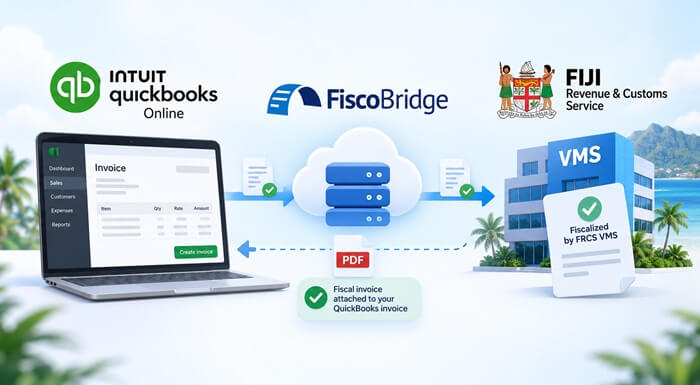
QuickBooks Online can connect to Fiji FRCS VMS V3 through FiscoBridge. You keep creating invoices in QuickBooks, while the integration processes eligible invoices and returns a fiscal journal PDF to the original transaction. The setup uses an FRCS-issued PFX certificate, authorization for the correct QuickBooks company, and properly configured tax rates.
This guide takes you from choosing the right certificate to checking your first fiscal invoice. It covers QuickBooks Online, not QuickBooks Desktop, and includes screenshots from the FiscoBridge QuickBooks connection guide.
TL;DR: how to connect QuickBooks to Fiji VMS
Prepare your PFX file and its credentials, create a QuickBooks integration in FiscoBridge, authorize your company through Intuit, check the tax configuration, and verify the returned fiscal document before relying on live processing.
- Your everyday invoicing stays in QuickBooks Online. The FiscoBridge QuickBooks integration adds fiscalization without routine double entry.
- Use a PFX certificate for this cloud connection. It is not the Smart Card setup used with a local SDC.
- Complete the whole check: connected company, correct tax treatment, successful fiscal result, and accessible customer document.
Does this guide apply to QuickBooks Online or QuickBooks Desktop?
This connection is for QuickBooks Online. FiscoBridge's product documentation distinguishes it from QuickBooks Desktop, which needs a separate connectivity assessment. Do not purchase or configure this cloud connection on the assumption that it also connects a Desktop company file.
| Your software | Which approach applies? |
|---|---|
| QuickBooks Online | Use the PFX-based FiscoBridge cloud integration described here. |
| QuickBooks Desktop | Ask FiscoBridge to review your version and installation before choosing a solution. It is not supported by this standard Online connector. |
QuickBooks Desktop accessed through a hosted server or remote desktop is still QuickBooks Desktop. Being able to open it remotely does not make it a QuickBooks Online company.
For the supported product scope, see the QuickBooks integration page.
What do you need before connecting QuickBooks to FRCS?
- The correct QuickBooks Online company. Identify the legal entity whose invoices will be processed.
- An authorized administrator. Intuit allows the primary admin or a Company Admin to connect apps; ordinary invoice-entry access may not be sufficient.
- Your Fiji PFX certificate, password and PAC. Keep the credentials supplied or chosen during the certificate request.
- A FiscoBridge account and integration access. Check the licence or available trial allowance before beginning.
- An accountant-approved tax setup. Review sales tax rates, tax-inclusive or tax-exclusive prices, and customer details.
Before the first connection, agree which invoices belong in the new workflow. Existing invoices, imports and transactions already fiscalized elsewhere deserve separate review to avoid accidental duplicate reporting. Agree the testing arrangement and prepare the tax settings before authorizing an automatically syncing connection.
Step 1: request the correct FRCS PFX certificate
The QuickBooks cloud workflow uses a digital .pfx file. A Smart Card cannot simply be uploaded in its place. The distinction is explained in Smart Card vs PFX certificate.
- Access the FRCS VMS Taxpayer Administration Portal for the correct registered business and location.
- Open Administration → POS Access Requests → Request Additional Certificates.
- Use the Files section for the file certificate, and set the requested password and PAC.
- Submit the request. After approval, use the certificate-delivery instructions to download and extract the .pfx file.
Keep the file, password and PAC secure. The illustrated certificate-request guide walks through these screens.
The integration itself does not require a card reader. FRCS may have separate admin-access requirements for your taxpayer portal. Businesses not yet enrolled should follow the registration guidance in the FRCS VMS FAQs rather than treating a FiscoBridge account as tax registration.
Step 2: create the integration and connect your QuickBooks company
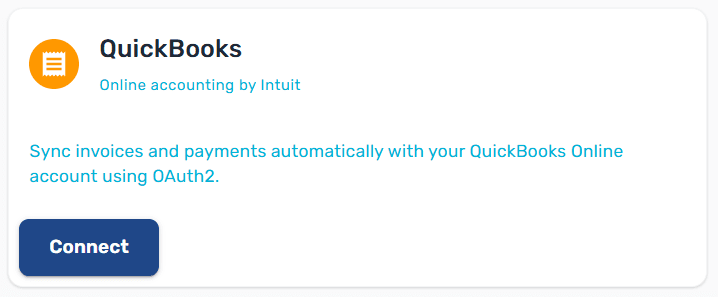
Select QuickBooks in FiscoBridge
Sign in to the FiscoBridge Client Portal. Open Integrations → Integrations, select Create Integration, then choose the QuickBooks card. Select the applicable subscription when prompted.
Upload and check the fiscal certificate
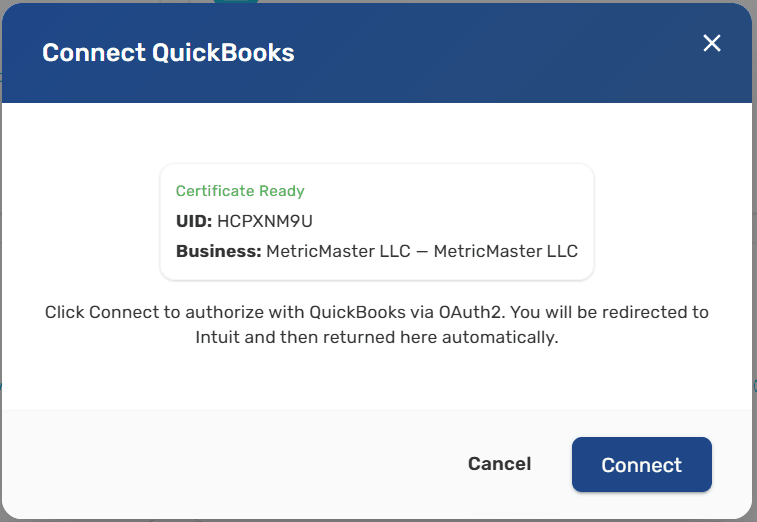
Upload the PFX and provide its credentials when requested. In the confirmation dialog, check Certificate Ready and the business shown. A successful upload is not enough if the certificate belongs to the wrong entity or location.
Authorize through Intuit
Select Connect. Sign in on Intuit's page with an authorized administrator account, choose the correct company, review the requested permissions, and approve the connection. This authorization keeps the Intuit password out of the FiscoBridge setup form.
When you return to FiscoBridge, check for Active in the integration list.
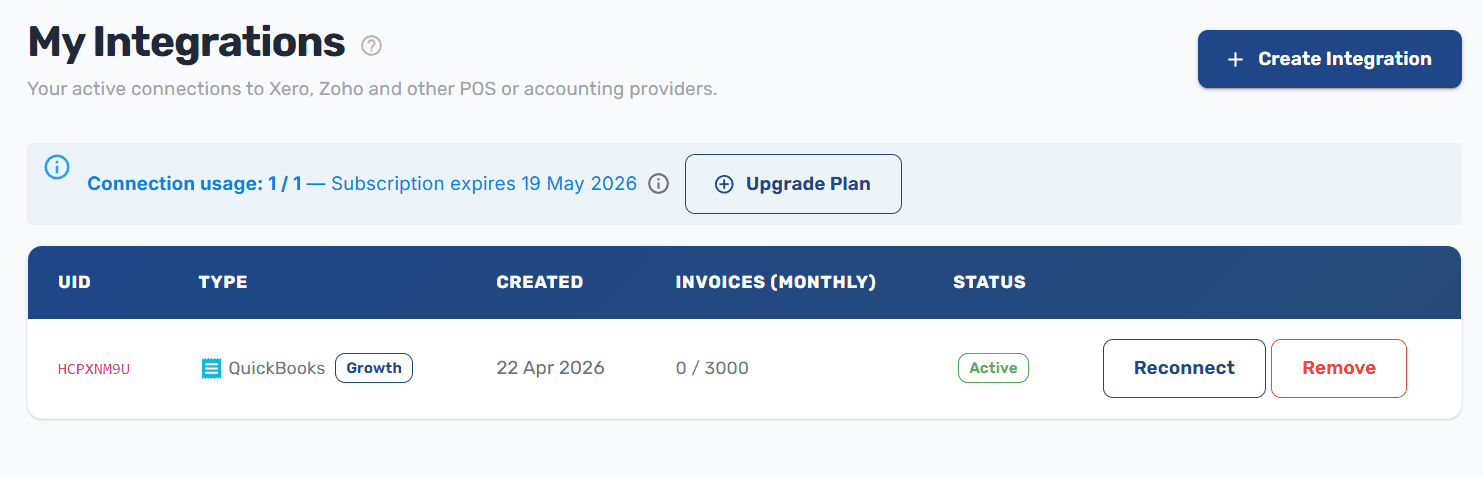
Active confirms the connection, not the correctness of every invoice. Continue with the tax and document checks below before considering setup complete.
Step 3: check QuickBooks tax-rate names, not just percentages
FiscoBridge matches the individual tax-rate names inside a QuickBooks tax code to fiscal label letters. A descriptive code name alone is insufficient. For example, a rate named G can match label G; VAT G does not. The percentage must also agree.
Open Taxes → Sales tax, or the equivalent tax settings in your regional edition. Add or edit the relevant rate, set its name to the required label and confirm the percentage. Save it, then select the corresponding tax code on the invoice lines. See the QuickBooks tax-label instructions.
| Setting | Standard-VAT example |
|---|---|
| Tax-rate name | G |
| Rate | 12.5% |
| Tax-code name | May be descriptive; the component rate name is what matters. |
FRCS's VAT guide lists 12.5% as the standard rate effective from 1 August 2025. Apply the treatment relevant to the transaction date and supply. Do not copy historical 9% or 15% examples into a current standard-rated invoice.
Zero-rated and exempt sales are not interchangeable. Nor should every line be changed to standard VAT just to clear a warning. Have your accountant confirm the appropriate categories, including any additional taxes that apply to your business.
If an unmapped tax prevents processing, review the warning, correct the source tax configuration, and use Re-check. FiscoBridge's troubleshooting guide explains this process.
Step 4: test the full workflow before relying on live processing
Do not create a made-up Normal Sale in a live company just to test the connection. Arrange and confirm the appropriate Training-mode setup with FiscoBridge first, or validate a genuine business transaction as part of an agreed go-live procedure.
FRCS distinguishes Training documents from live fiscal invoices. Typing “TEST” into an invoice description does not change its fiscal invoice type.
Before saving the first invoice, check the company, customer, currency, invoice date, items and taxes. Add the buyer's tax number to the QuickBooks customer record where needed. Confirm any payment-method requirements with the implementation team.
- Create the invoice in QuickBooks Online.
- Allow the connected workflow to retrieve it.
- Check the fiscal result and totals.
- Open the returned PDF and verify the document.
Plan the point at which the customer receives the fiscal document. An accounting invoice saved successfully in QuickBooks is not, by itself, confirmation that the fiscalization has completed.
Worked example: a Fiji business invoices FJD 1,125
Example only: ABC Office Supplies is a fictional VAT-registered Fiji business using QuickBooks Online. It supplies goods and prepares invoice INV-1001. Assume both items are standard-rated at 12.5%, prices are tax-exclusive, and no other tax applies.
| Invoice line | Calculation | Amount (FJD) |
|---|---|---|
| Supply item A | 10 × 80.00 | 800.00 |
| Supply item B | 5 × 40.00 | 200.00 |
| Subtotal | Before VAT | 1,000.00 |
| VAT | 1,000.00 × 12.5% | 125.00 |
| Invoice total | Including VAT | 1,125.00 |
Enter and review the QuickBooks invoice
Use + New or + Create → Invoice, select the customer, add the items, and apply the correct tax. Review the dates and total before saving.
For this example, the tax component is configured for G at 12.5%. A tax-inclusive invoice needs different entry values: do not enter an already VAT-inclusive selling price and then unintentionally add VAT again.
Check the result, not just the connection
When the transaction is processed, compare the returned fiscal document with INV-1001. The expected subtotal is FJD 1,000.00, VAT is FJD 125.00, and total is FJD 1,125.00.
The fiscal document also has its own SDC Invoice Number. Keep that identifier linked to INV-1001; the two numbers are not substitutes for each other. FRCS's invoice requirements explain the fiscal identifier and verification information.
The test is complete only when the correct business and customer appear, the amounts reconcile, the intended invoice type is shown, and staff can find and verify the document without recreating the sale.
Step 5: find the fiscal PDF in QuickBooks Online
The QuickBooks integration documentation states that the fiscal journal PDF is attached to the original QuickBooks invoice.
- Open the invoice that was processed.
- Find its Attachments section and open the fiscal journal PDF.
- Compare the totals and check the fiscal invoice number and verification information.
- Print or share the fiscal document through your agreed customer-delivery process.
Intuit's attachments guide also explains how to find documents through Settings → Attachments. Do not assume that an attached PDF was automatically included in an email sent before fiscalization finished.
Find the same transaction in FiscoBridge
Open Integrations → Integration Invoices. Filter by business, location or date, then choose View Details for the relevant invoice. The panel provides its status, journal and verification URL; Print Receipt is also available. See Managing Integration Invoices.
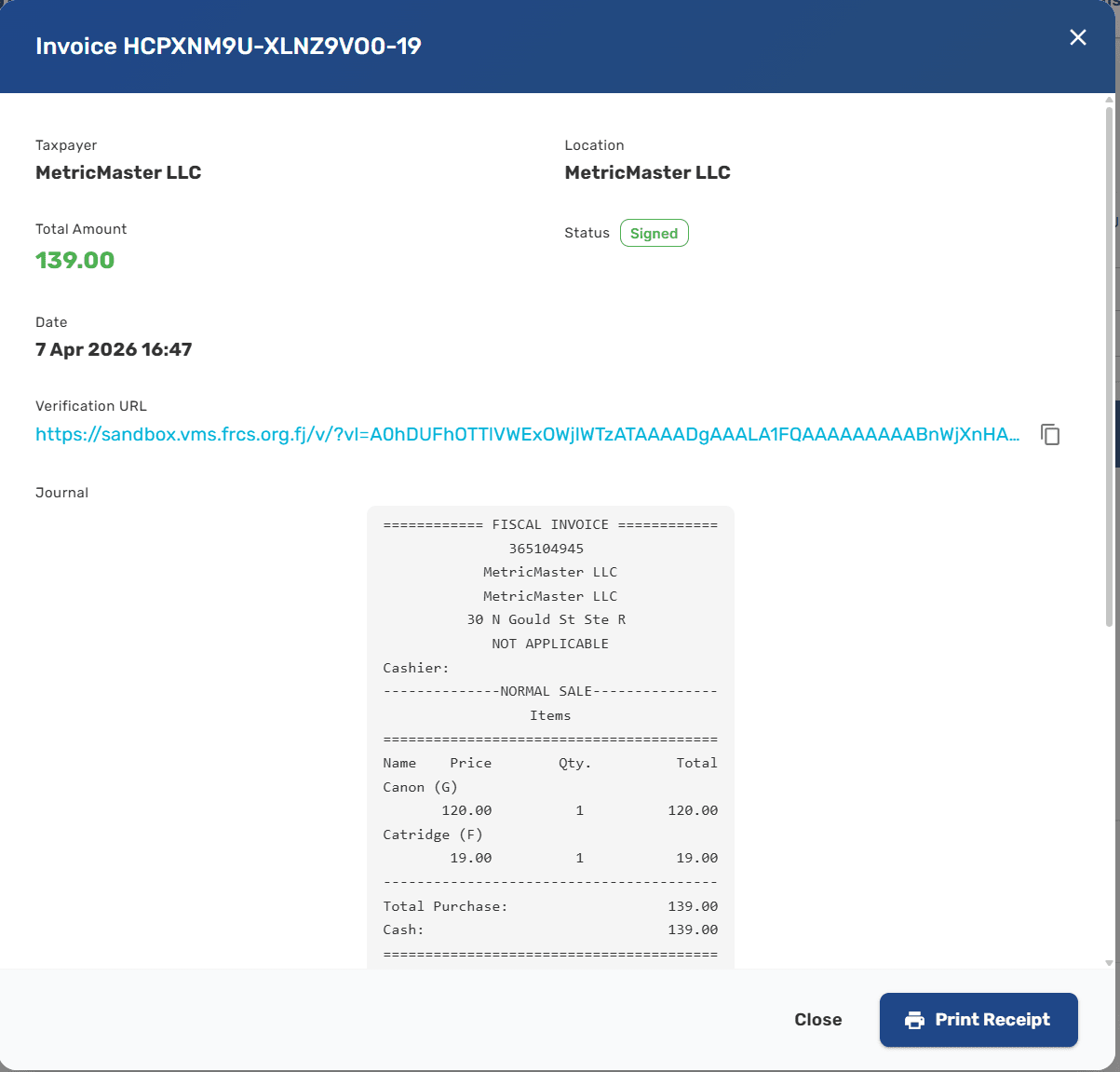
For a live fiscal invoice, use the QR code or verification link and compare the result on the FRCS verification page. FRCS recommends checking invoice authenticity this way in its VMS FAQs.
Why is my QuickBooks invoice not appearing as a fiscal invoice?
| What you notice | What to check first |
|---|---|
| Authorization does not complete | Use the correct Intuit administrator and company. Ask the primary admin to review permissions. |
| Connection is inactive | Review the connection, licence and any reconnect prompt in FiscoBridge. |
| Tax-label warning | Read the message, correct the named tax or component rate, and re-check the configuration. |
| No result immediately after saving | Allow for scheduled syncing. Check status before creating another invoice or attempting a manual replacement. |
| Fiscal invoice exists, but PDF seems missing | Look in QuickBooks attachments and in FiscoBridge invoice details. Investigate document delivery separately from fiscalization. |
| Totals do not agree | Compare the source prices, tax-inclusive/exclusive setting, discounts, tax categories and rounding. |
FiscoBridge places QuickBooks fiscalization error information on the source invoice. Read the actual reason before making changes. The failed-invoice guide and integration management guide explain the available checks.
When contacting support, include the company, invoice number and error message. Do not send your PFX password or PAC in an ordinary troubleshooting email.
What about credit notes, deposits and other QuickBooks transactions?
Credit notes and refunds
Do not treat a negative invoice as a replacement for a fiscal Refund. Under the FiscoBridge portal workflow, record the accounting adjustment as required, find the original fiscal Sale in Integration Invoices, and use Refund Invoice. The Refund must retain the original fiscal reference.
Negative-value documents that cannot be submitted as valid fiscal Sales are not automatically fiscalized as Sales. Before any manual adjustment, check that the refund has not already been processed. Read Credit notes and debit notes: Sale vs Refund explained.
Deposits and advance payments
Receiving money before supply can require an advance-payment workflow rather than an ordinary completed sale. Discuss deposits and instalments before enabling automation, and keep the original fiscal references. See Advance payments and deposits.
Payment-driven or unusual invoice workflows
This guide covers customer invoice syncing. Have payment-based processing, retail Sales Receipts, foreign-currency invoices, combined daily totals and transactions already fiscalized by a POS reviewed separately. Do not assume that every QuickBooks document follows the same route.
Ready to connect QuickBooks Online to Fiji VMS?
Start with the certificate, correct company and tax setup, then prove the full journey with an invoice and its returned fiscal document.
Explore the FiscoBridge QuickBooks integration
Review the integration plans, or contact FiscoBridge with your QuickBooks edition, number of companies and any special invoicing requirements.
Frequently asked questions
Can QuickBooks Online connect to Fiji FRCS VMS V3?
Yes. The FiscoBridge QuickBooks integration connects your Online company to the fiscalization workflow and returns the fiscal document to the accounting transaction. Correct setup and successful processing still need to be checked. Source.
Does the same connection work with QuickBooks Desktop?
No. This is the QuickBooks Online connector. A Desktop company, including one accessed remotely, needs a separate review before selecting a fiscalization solution. Source.
Do I need a Smart Card for the QuickBooks cloud integration?
Use a PFX file for this FiscoBridge workflow, not a Smart Card. Taxpayer-portal access requirements are separate from the cloud integration itself. Source.
Who can authorize FiscoBridge in QuickBooks?
Use the company primary admin or a Company Admin. Intuit restricts app connections to authorized roles; being able to enter invoices is not enough.
Why can a correct VAT percentage still fail tax mapping?
FiscoBridge also checks the component tax-rate name against the fiscal label. Review both the name and percentage rather than relying only on the visible tax-code description. Source.
How long should I wait for a QuickBooks invoice to sync?
The QuickBooks connection guide specifies a default 15-minute polling interval, with timing dependent on the plan and configuration. Check the integration status before assuming that an immediate absence means failure. Source.
Where is the fiscal document after the invoice is processed?
Look in the original QuickBooks invoice attachments. You can also open the relevant record in FiscoBridge Integration Invoices to view the journal and verification link. Source.
Can I use a dummy invoice to test a live connection?
Only after the appropriate Training setup has been confirmed. A made-up Normal Sale remains a live transaction; an invoice description containing the word TEST does not change its fiscal type.
Can an accountant connect several QuickBooks companies?
Each QuickBooks company needs its own FiscoBridge connection. Confirm the relevant taxpayer certificate and business-location arrangement for each company. Source.
Does a QuickBooks credit note remove the original fiscal Sale?
Do not assume that an accounting edit removes a fiscal record. Follow the agreed Refund workflow, reference the original fiscal invoice and check for an existing refund before processing another adjustment. Source.
Official sources and setup documentation
Official sources
- FRCS: VMS FAQs, taxpayer registration and verification
- FRCS: VAT guide and current standard VAT rate
- Intuit: view and manage QuickBooks attachments
FiscoBridge setup documentation
- QuickBooks integration and fiscal PDF return
- Connecting QuickBooks, tax-rate names and syncing
- Requesting the PFX certificate
- Managing integration invoices
- Troubleshooting failed invoices
Guidance reviewed on 18 September 2026. The screenshots are published FiscoBridge documentation examples; screen layout and account details may differ. Confirm the current tax treatment and any unusual workflow with FRCS, your accountant and your implementation provider.