
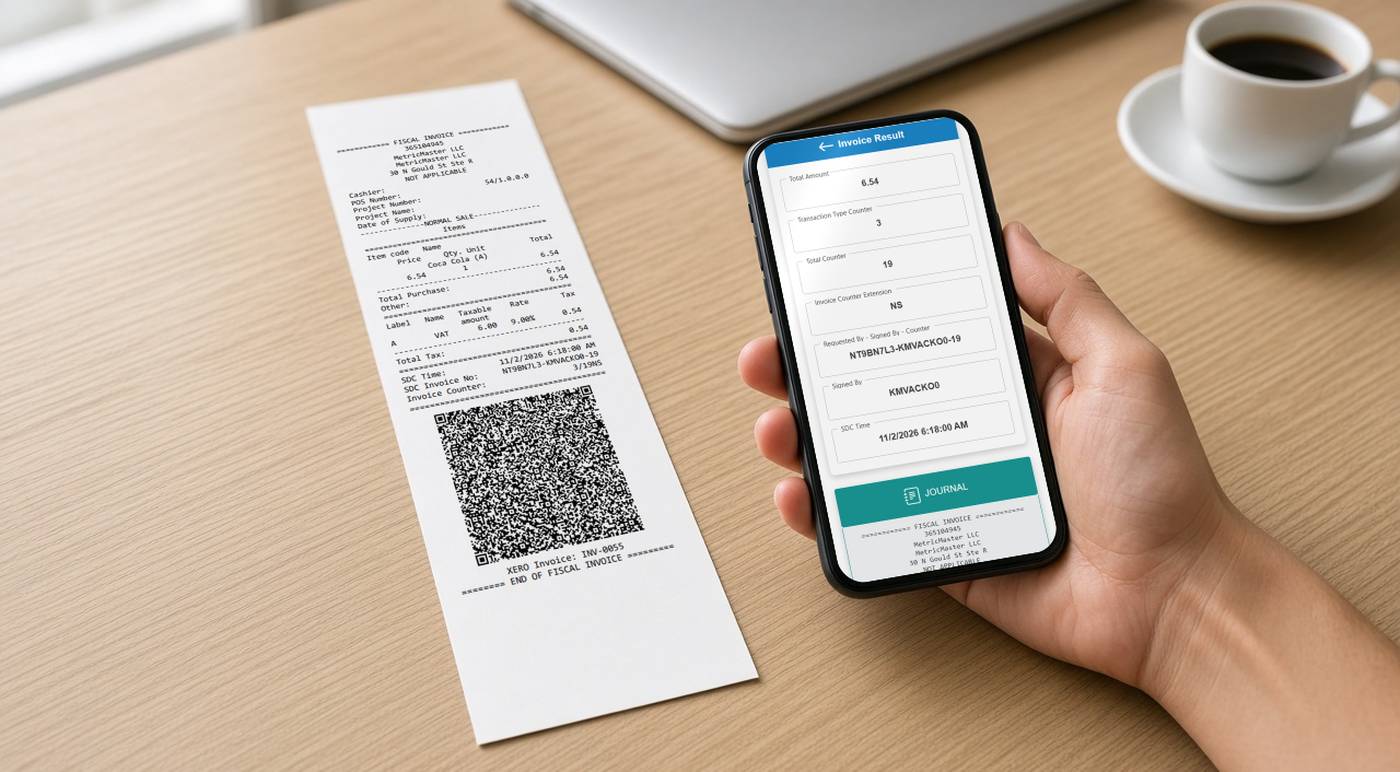
To verify a fiscal invoice, scan its QR code (or click the verification link on an emailed invoice), check that the page opens on the tax authority's official website, and read the result. A genuine invoice shows as verified, with details that match the paper or PDF in your hand. [2]
This guide is for buyers, accounts teams and accountants who receive fiscal invoices, and for business owners who want to check their own. It explains what makes an invoice fiscal, how to read the result and how to spot documents that are not fiscal invoices. If you are dealing with a seller who gave you no fiscal invoice at all, read what a missing fiscal invoice means for customers and businesses.
Summary
- Fiscal means signed: the invoice was signed by an approved fiscal device or system and carries a verification link, usually as a QR code.
- Three steps: scan or click, check the website is the tax authority's, read the result.
- Compare: the seller, total, date and items on the page should match your invoice.
- Not fiscal: Training, Proforma and Copy documents say THIS IS NOT A FISCAL INVOICE.
- Limits: verification shows the invoice is genuine. It does not prove the tax is right or that a claim will be accepted.
What makes an invoice fiscal
A fiscal invoice is one that has passed through the tax authority's fiscalisation system before it reaches you. In plain terms, the seller's till or invoicing software sends the sale to an approved fiscal device or service, which signs it and returns the details that make it checkable. (See our glossary for any term you are unsure of.)
The visible sign is the verification link. On a printed receipt it appears as a QR code. On an emailed or PDF invoice it can also appear as a clickable link. In systems built on the TaxCore platform, used by several tax authorities, the verification link is a standard part of every fiscal invoice, and an invoice without one cannot be considered fiscal. [1]
Other systems differ in design, but the principle is usually the same: a fiscal invoice can be checked against the tax authority's records.
How to verify an invoice in three steps
- Scan the QR code or click the link. Use your phone's camera or any QR reader app. On an emailed invoice, click the verification link.
- Check the website. Before reading anything, look at the web address. It should belong to the tax authority. If it opens a shop's own site, a shortened link or an unfamiliar domain, treat the invoice with caution.
- Read the result. The page tells you whether the invoice is verified or invalid, and shows the details held by the tax authority. Compare them with your invoice. [2]
For example, Vanuatu's tax authority publishes a public verification page at vsms.gov.vu/verify, where scanned invoices open. [7]
Reading the result
In TaxCore-based systems the page shows one of two results: the invoice is verified, or the invoice is invalid. [2] Verified means the invoice was signed by an approved fiscal device or service. Invalid means the data does not match a signed invoice.
Alongside the result, the page typically shows: [2]
- the seller's tax number (TIN), business location name and address;
- the buyer's TIN, but only on invoices where the buyer was identified;
- the invoice type, such as a sale or refund;
- the total amount;
- the invoice number and the invoice counter (a running count of invoices from that seller's device);
- the exact date and time the invoice was signed;
- a journal, which is the full copy of the receipt with the list of items.
Compare these with the invoice you received, paying attention to the seller's details, the total, the date and time, the items and the invoice type. [4]
A missing journal does not by itself mean the invoice is fake. The journal appears only once the seller's system has sent the invoice data to the tax authority, which can be delayed if the seller was briefly offline. Wait a little and check again. [4]
Invented example (not a real invoice)
A café receipt shows a total of 48.50, signed on 3 March at 12:41, invoice counter 1520. You scan the QR code. The tax authority's page says the invoice is verified and shows the café's name, the same total, date, time and counter, and a journal listing two coffees and a sandwich. Everything matches, so the receipt is genuine. If the page had shown a total of 18.50, you would query the receipt with the café.
No QR code, or it will not scan
If the QR code is damaged, faded or will not scan, you may still be able to check the invoice by hand. Many verification services let you type in a few details printed on the invoice. In TaxCore-based systems these are the total amount, the date and time the invoice was signed, the invoice number and the invoice counter, and all of them must be entered correctly. [3]
Not every country offers manual checking, and the details asked for can differ. If the tax authority's site has no manual option, ask the seller for a clean copy of the original invoice or its verification link.
Documents that are not fiscal invoices
Some documents look like receipts and may even carry a QR code, but they are not fiscal invoices. In TaxCore-based systems the three to watch for are: [5]
| Document | What it is | Tax effect |
|---|---|---|
| Training | Created while staff practise on the till or invoicing system. | Does not create tax liability |
| Proforma | A quotation or estimate given before a sale is confirmed. | Does not create tax liability |
| Copy | A duplicate of an invoice that was already issued, referring to the original sale. | Does not create tax liability; the original invoice is the one that counts |
These documents show their type and the message THIS IS NOT A FISCAL INVOICE, printed in large letters. [6] If you see that message, the document cannot be used as a fiscal invoice. Ask the seller for the original. To learn how sellers use Training documents safely, see how training invoices help prevent fiscalisation mistakes.
Red flags
- There is no QR code or verification link at all.
- The link opens a website that is not the tax authority's.
- The total, date, time or items on the page do not match your invoice.
- The seller's name or tax number on the page is different from the one on the invoice.
- The result says invalid.
- The page asks for a password, card details or payment.
Where details do not match, many TaxCore-based verification pages include a link to report the invoice to the tax authority. [4]
Why it matters for input tax claims
If your business claims back the VAT it paid (input tax), your accountant will often need a valid fiscal invoice. Verification shows the document is a genuine fiscal invoice. It does not prove that the right tax rate was charged, or that your claim will be accepted, so confirm the claim rules with your tax authority or adviser. For why fiscal invoices matter to buyers, see our guide to missing fiscal invoices, and for the difference between a tax invoice and a quotation, see Tax Invoice vs Proforma invoice.
For businesses: check your own invoices
If you issue fiscal invoices, scan one of your own every so often. It is the quickest way to confirm that your till or invoicing software is really fiscalising sales. For example, Fiji's tax authority suggests that businesses check their system by issuing one transaction and scanning its QR code. [8]
In FiscoBridge Integrations, you can open any invoice and see its verification link, journal and QR code, and copy the link to share with a customer. [9] See managing integration invoices for the steps.
Want invoices from your accounting or business software to be fiscalised automatically? See FiscoBridge Integrations, or use the Solution Checker to find the right setup.
This article is general guidance, not legal or tax advice. Verification screens and options differ between countries. Check your tax authority's guidance before acting.
Frequently asked questions
What does "invalid" mean on the verification page?
It means the details behind the QR code or link do not match an invoice signed by the fiscal system. Do not rely on the invoice yet. Ask the seller to explain or reissue it, and consider reporting it through the tax authority's own reporting channel, which is often linked from the verification page.
The journal is missing. Is the invoice fake?
Not necessarily. The journal (the full copy of the receipt held by the tax authority) appears only once the seller's system has sent the invoice data to the authority. If the seller was briefly offline, it can take a while. Wait and check again later.
Can I verify an invoice without the QR code?
Often, yes. Many verification services let you type in a few details printed on the invoice, such as the total amount, the signing date and time, the invoice number and the invoice counter. Not every system offers this, so check your tax authority's verification page.
Is a Proforma or Copy valid for my VAT claim?
No. These documents carry the message THIS IS NOT A FISCAL INVOICE. A Proforma is a quotation and a Copy is a duplicate of an earlier sale. Ask the seller for the original fiscal invoice, and confirm the claim rules with your tax authority or adviser.
How do I know the verification page is genuine?
Look at the web address before you trust the result. It should be on the tax authority's official website. A genuine verification page only shows invoice details. It never asks for a password, card number or payment.
How long can an invoice be verified?
It depends on the country and its system. Check with your tax authority if you need to verify older invoices.
Sources
All sources were reviewed on 2 November 2026.
Official tax authority sources
- Samoa TIMS help (TaxCore): Verification URL (PDF)
- Samoa TIMS help (TaxCore): Invoice Verification Service
- Samoa TIMS help (TaxCore): Invoice Verification Without a QR Code or Verification URL
- Samoa TIMS help (TaxCore): Report Suspicious Invoices (journal availability, what to compare)
- Samoa TIMS help (TaxCore): Invoice and Transaction Types
- Eswatini ERS: Technical Guidelines for the Accreditation of EFD solutions, 2026, invoice checklist Q10 (the THIS IS NOT A FISCAL INVOICE message) (PDF)
- Vanuatu VSMS: public invoice verification page
- Fiji FRCS: VAT Monitoring System (VMS) FAQs