
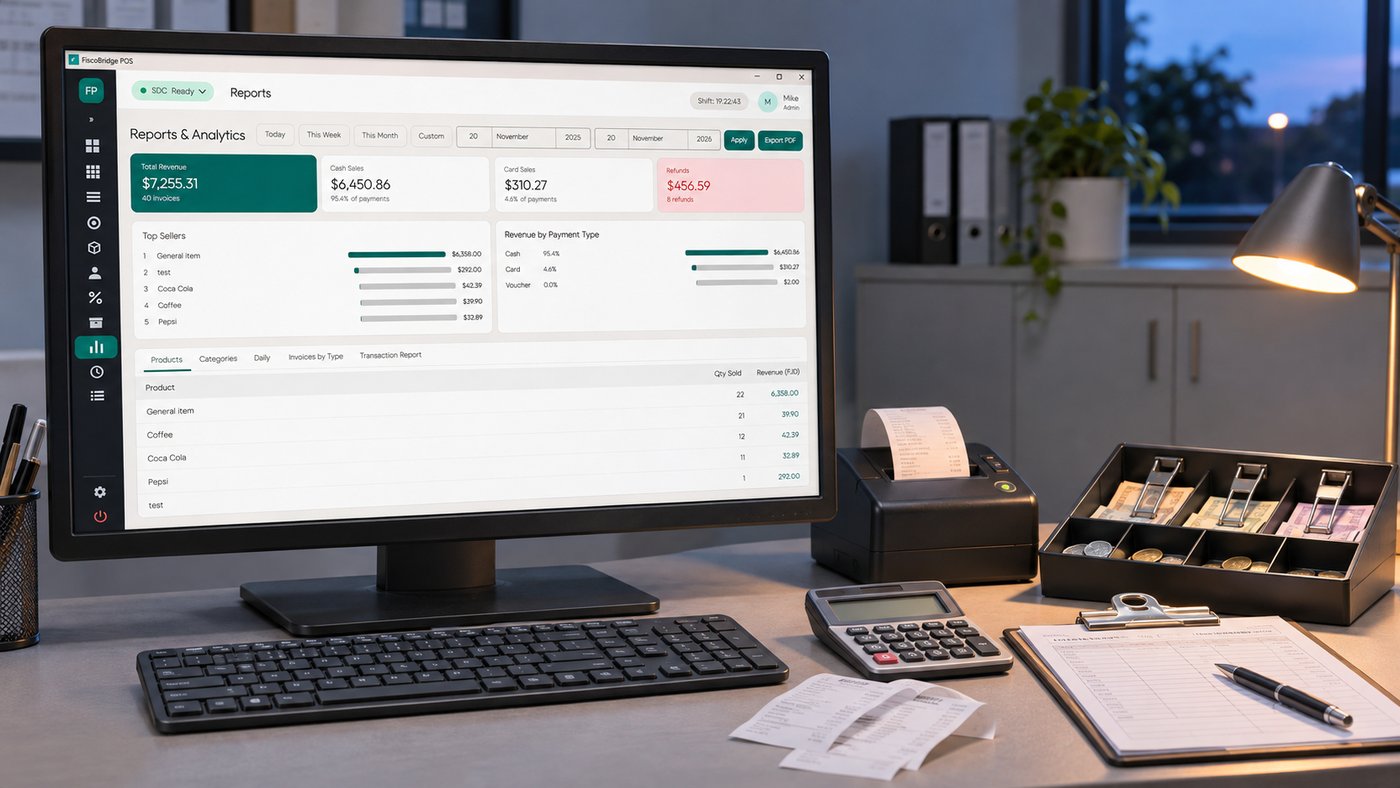
A fiscal daily report is a summary of one day's invoices: how many you issued of each type, your total sales and refunds, and how much was paid by cash, card and other methods. Published Vanuatu and Eswatini technical guidelines explicitly require your point-of-sale system (POS) to produce one on request. [7][8] FiscoBridge has confirmed the same POS reporting expectation for Fiji and Samoa. [9] Checking it against your card settlements, mobile-money records and cash drawer every day catches mistakes while they are easy to fix.
That POS daily report, or Z-report, is the business-side report. In Fiji, Samoa and Vanuatu there is also an authority-side report: the Daily Report in the tax authority's online portal, which shows what its system has received from you. This guide explains both and ends with a short routine for every evening.
Summary
- Your POS should produce a daily report on request. Vanuatu and Eswatini guidelines require it; FiscoBridge has confirmed the same for Fiji and Samoa. It shows invoice counts per invoice type and transaction type, total sales, total refunds, and totals per payment type.
- Only Normal and Advance invoices count towards sale and refund totals. Training, Proforma and Copy invoices do not.
- The TAP Daily Report in Fiji, Samoa and Vanuatu is produced by the tax authority's portal. It covers up to 48 hours for one business location and flags missing invoices.
- Your POS daily report or Z-report is your own operational record. Based on the sources reviewed, it is not a separate report that you submit to the tax authority. The TAP Daily Report is the authority-side report.
- Reconcile every day: count cash, match card and mobile money totals, clear failed uploads and check the portal the next day.
Why reconcile every day
A daily check catches failed or pending invoices, cash differences, and invoices issued as the wrong type, and gives your accountant a clean trail.
This article summarises public tax-authority material and FiscoBridge documentation. It is not legal or tax advice, and a clean daily reconciliation does not by itself guarantee a correct VAT return. Check your obligations with your tax authority or adviser.
Official reports and FiscoBridge reports side by side
The tax authority's reports show what its system has received. Your POS reports show what you issued.
| Question | Official (tax authority) | FiscoBridge (product) |
|---|---|---|
| Which report? | The Daily Report in the Taxpayer Administration Portal (TAP) for Fiji, Samoa and Vanuatu. [1] | Desktop POS shift close (Z-report) and Reports page; the Web Invoicing Daily Report. [10][12] |
| What period? | Up to 48 hours, for one business location. [1] | Desktop POS: per shift, or any date range. Web Invoicing: up to 62 days. [11][12] |
| What does it show? | Missing invoices, invoices received through invoice verification, totals per payment type, and sale and refund totals per tax rate. [1] | Invoice counts per type, sale and refund totals, totals per payment type, and, at shift close, expected and counted cash. [10][11] |
| Is it an official report? | Yes. It is produced by the tax authority's portal. | No. It is your business-side POS report and operational record. [10][12] |
Official: the TAP Daily Report
In Fiji, Samoa and Vanuatu, the Daily Report sits under Reports in the Taxpayer Administration Portal. You choose a business location and a period of up to 48 hours. If you log in with a smart card, you only see results for the business location that card was issued for. [1][2][3]
The report has four parts:
- Missing invoices: gaps in your invoice sequence, meaning invoices you issued that have not yet reached the tax authority's system. The amounts of those invoices are not included in the report.
- Invoices received via invoice verification: invoices that reached the system because someone verified them. TAP warns that some information in the Daily Report may be missing in that case. [1][2][3]
- Total amounts per payment type for each till or device used at that location.
- Total sale and refund per tax rate, covering Normal and Advance invoices only, with the first and last invoice used.
Each part can be exported as a spreadsheet (XLSX), JSON or HTML file. The Reports menu also lets you search invoices, including invoices that carry the buyer's identification, and export them for use elsewhere. [4][5][6]
Official: what a POS daily report should show
Published Vanuatu and Eswatini technical guidelines explicitly require a POS to produce a daily report whenever a user requests it. [7][8] FiscoBridge has confirmed the same POS reporting expectation for Fiji and Samoa. [9] At minimum, that report shows:
- The number of fiscal invoices issued, split by invoice type and by transaction type (sale or refund).
- The total sale amount, counting Normal and Advance invoices only.
- The total refund amount, counting Normal and Advance invoices only.
- The total amount for each payment type, such as cash, card or mobile money.
This is the business-side report, your own operational record. Based on the sources reviewed, it is not a separate report that you submit to the tax authority.
What is left out of the totals
Training, Proforma and Copy invoices do not change what you owe, so official sale and refund totals count Normal and Advance invoices only. Training invoices are for testing or staff training, while a Proforma is an informational quotation. Copy invoices reproduce a previously issued document and do not affect tax liability. All three can still appear in the invoice counts by type. [1][7]
Cancelled invoices are handled by your POS. In FiscoBridge reports, cancelled invoices are left out of the sale and refund totals and the payment type totals. The Desktop POS shift summary shows how many invoices were cancelled during the shift, so you can see them and ask why. [10][11][12][13]
FiscoBridge: shift close and daily reports
This section describes FiscoBridge products, not official reports.
Desktop POS. Each trading period starts with an open shift and an opening float, the cash placed in the drawer before trading. Cash In and Cash Out entries need a reason and a manager PIN. The shift summary shows counts of Normal sales, refunds, cancellations, copies and Training invoices, plus totals by payment type. It also works out the expected cash: opening float, plus cash sales, minus cash refunds, plus Cash In, minus Cash Out. [10]
Closing the shift produces the Z-report and needs a manager PIN. You cannot close while carts are parked. You enter the counted cash, Desktop POS shows the difference, and you can add a note. Investigate any difference before you confirm, because it cannot be edited after the shift is closed. The Reports page provides the same fiscal reporting figures for any selected date range. [10][11]
Cloud POS (Web Invoicing). The Daily Report covers any range up to 62 days. You can filter by taxpayer, business location, till, invoice type and transaction type. Its help page documents total sale amount, total refund amount, invoices by type and totals per payment type. The sale, refund and payment totals count Normal and Advance invoices and leave out cancelled ones. [12] The 62-day range belongs to this FiscoBridge report and the 48-hour limit to the TAP Daily Report. They are different tools.
A 10-minute end-of-day routine
- Run the POS daily report for the day, or close the shift if you use shifts.
- Count the cash in the drawer and compare it with the expected cash.
- Compare payment type totals with your card terminal settlement and mobile money statements.
- Check for failed or pending invoices. If invoices come from an accounting or booking platform, follow the failed invoice troubleshooting guide. [14]
- Next day, check the TAP Daily Report (Fiji, Samoa and Vanuatu) for the previous 48 hours, starting with the missing invoices section.
- Record any difference with a short note on its cause and who checked it.
Before going live, practise the routine with Training invoices so staff can learn the workflow without affecting tax liability or issuing Normal Sale transactions. Our guide to testing with Training invoices explains how. [18]
Common mismatches and their possible causes
| What you see | Possible cause | What to check |
|---|---|---|
| More cash in the drawer than expected | A real sale was accidentally processed in Training mode, so the payment was taken but no Normal Sale was recorded and the Training transaction did not affect tax liability. | Make sure the till is out of Training mode, and correct the transaction according to your tax authority's requirements. |
| Counted cash differs from expected cash | Incorrect change, unrecorded Cash In/Out, or wrong payment method | Review cash movements, cash sales/refunds and card transactions before closing the shift |
| TAP totals lower than POS totals | Invoices issued while the till was offline have not uploaded yet. | Reconnect the till, let it finish sending, then check the missing invoices section again. |
| Sales too high and refunds too low | A refund was issued as a new sale. | Issue refunds as refund invoices that refer to the original sale. See sale vs refund explained. |
| Card or cash totals off, overall total correct | A split payment was recorded under one method. | Record each method with its own amount when a customer pays in parts. |
| Invoices missing from the location report | They were issued at another business location. | Run the report for each location. See multiple locations. |
Where FiscoBridge fits
FiscoBridge Desktop POS is available in Fiji, Samoa, Vanuatu and Eswatini. It handles shifts, the Z-report with a cash count, and date-range reports with invoice counts, sale and refund totals and payment type totals. [10][11][15] FiscoBridge Cloud POS (our Web Invoicing product) gives you a filterable Daily Report in the browser. [12]
If you are not sure which setup fits, the Solution Checker is a guidance tool, not official advice. Confirm your obligations with your tax authority.
Frequently asked questions
Why does my TAP report show missing invoices?
The TAP Daily Report lists gaps in your invoice sequence: invoices you issued that have not yet reached the tax authority's system. Often they are still waiting to upload from the till. Check that the till is online and has finished sending before you assume anything is lost. Amounts from missing invoices are not included in the report totals.
Why can I only pick 48 hours in TAP?
The TAP help pages limit the Daily Report to a period of 48 hours. Run it every day for the previous day, or use the invoice search on the Reports page when you need to look at a longer period.
Do Training invoices count in the totals?
No. Only Normal and Advance invoices count towards the sale and refund totals. Training, Proforma and Copy invoices do not change what you owe, so they are left out of those totals.
Is the Z-report sent to the tax authority?
No. The fiscal invoice data is transmitted to the tax authority through the fiscal system. The POS daily report or Z-report itself is not shown in the sources we reviewed as a separate report that must be submitted. It is your own operational record, which you produce at the till when you need it.
Should the POS total match the TAP total?
They should generally reconcile when you compare the same business location, period and transaction scope after all audit data has reached the tax authority. However, TAP itself warns that some report information may be incomplete when invoices arrived through invoice verification. A difference before all data has arrived usually means an upload is still pending.
Who should have access to TAP?
Give access only to the people who need it, such as the owner, the manager who closes the day and your accountant. Never share smart card PINs or TAP login details between staff.
Sources
All sources were reviewed on 20 November 2026.
Official sources
- FRCS Taxpayer Administration Portal (TAP) help, Fiji: Daily Report (period limited to 48 hours; smart card login limited to its own business location; sections Missing invoices, Invoices received via invoice verification, Total Amounts per Payment Type, Total Sale and Refund per Tax Rate for Normal and Advance invoices; export as XLSX, JSON or HTML)
- Samoa TIMS Taxpayer Administration Portal (TAP) help: Daily Report (same content as the Fiji page)
- Vanuatu VSMS Taxpayer Administration Portal (TAP) help: Daily Report (same content as the Fiji page)
- TAP help, Reports page (Search Invoices, Search Invoices with Buyer Identification, Daily Report): Fiji
- TAP help, Reports page: Samoa
- TAP help, Reports page: Vanuatu
- Vanuatu: Technical Guidelines for the Accreditation of EFD solutions, POS administrative operational functions, Q1 (daily report on user request, minimally: number of fiscalized invoices per invoice and transaction type; total sale amount and total refund amount, Normal and Advance invoices only; total amounts per payment type) (PDF)
- ERS: Technical Guidelines for the Accreditation of EFD solutions, 2026, POS administrative operational functions, Q1 (same minimum daily report content) (PDF)
FiscoBridge documentation
- FiscoBridge confirmation (20 November 2026): the tax authorities in Fiji, Samoa, Vanuatu and Eswatini all ask for a daily report from the POS, with the minimum content listed in this article
- FiscoBridge help: Desktop POS daily report (shift report and Z-report)
- FiscoBridge help: Desktop POS reports (invoices by type, transaction report)
- FiscoBridge help: Web Invoicing daily report (up to 62 days)
- FiscoBridge help: Web Invoicing copy, refund and cancel
- FiscoBridge help: troubleshooting failed integration invoices
- FiscoBridge blog: Desktop POS software for Fiji VMS, Samoa TIMS and Vanuatu VSMS
- FiscoBridge blog: one Fiji business, multiple locations
- FiscoBridge blog: credit notes, debit notes, sale vs refund explained
- FiscoBridge blog: test before you go live with Training invoices